The Gigabyte company, as usual, gave its competitors a head start in time, and then “shot” with monitors that are hard to compete with, because in terms of quality/capabilities/price, the M series rarely had worthy competitors. This is what happened now – the new MO27Q2 27-inch QHD gaming monitor based on a third-generation QD-OLED panel with a refresh rate of 240 Hz proves this in full. To make sure of this, let’s take a closer look at this Gigabyte MO27Q2 review.

The company presented the 27-inch 240Hz gaming monitor at the end of November 2024 and planned to officially start sales in the US and European markets in the first quarter of 2025.
Gigabyte MO27Q2 Review
Unoxing
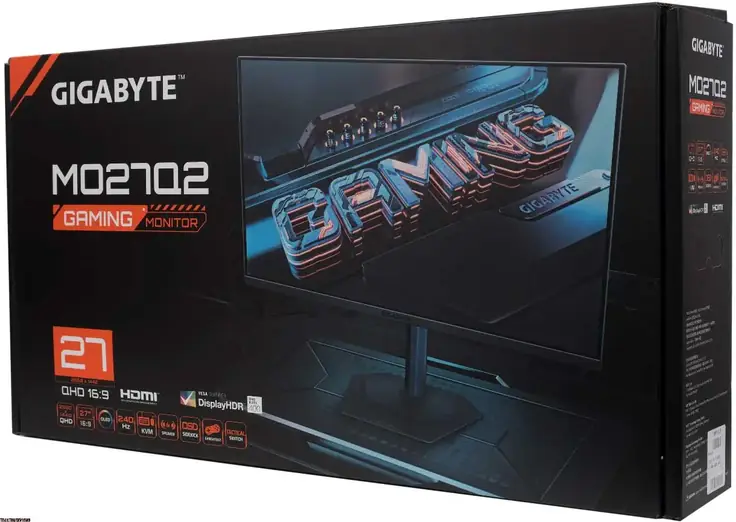
Our Gigabyte MO27Q2 review unit comes in a large and heavy box made of painted cardboard with high-quality printing.
A plastic handle is attached to the top of the box, so it will not cause any inconvenience during transportation.
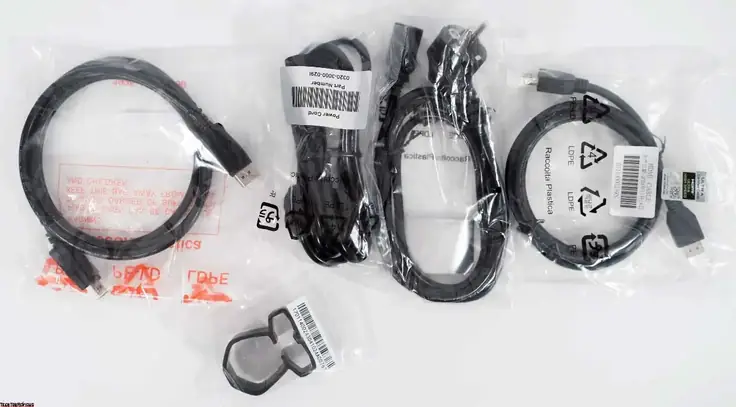
Included in the Gigabyte MO27Q2 package are:
- Power cable
- DisplayPort cable
- HDMI cable
- USB cable for PC connection and hub operation (not shown in photo)
- Plastic component for cable management
- Warranty card
- Quick start guide
- Energy+ compliance stickers
- Factory calibration report
The kit includes everything you need to start trouble-free work and get the maximum possible 240 Hz refresh rate when connected via any of the available interfaces, including Type-C (cable purchased separately), to both Windows and macOS laptops, but only if the GPU meets the necessary bandwidth requirements. For example, using this Gigabyte screen with a MacBook Air M1 did not create any unnecessary restrictions – 240 Hz in full RGB mode (without signal compression) was available immediately after connecting via a Thunderbolt 4-compatible cable.
Design and Ergonomics
The MO27Q2 high refresh rate gaming monitor retains the recognizable design of the Gigabyte Gaming series but Gigabyte redesigned it to match the brand’s updated approach for the 2024-2025 OLED lineup.
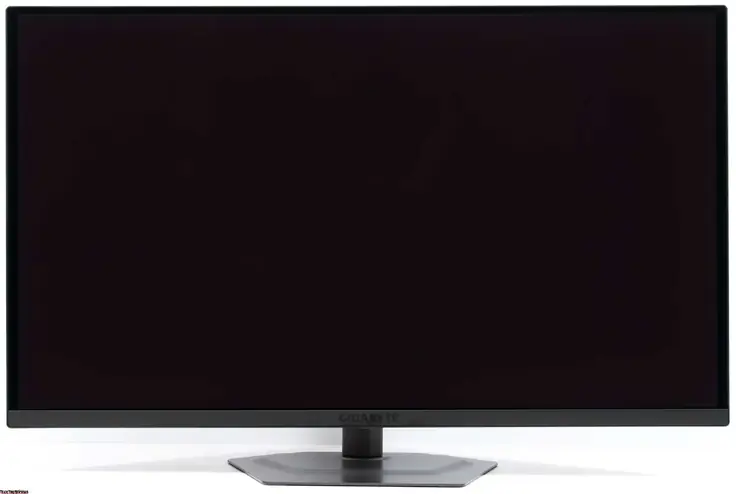
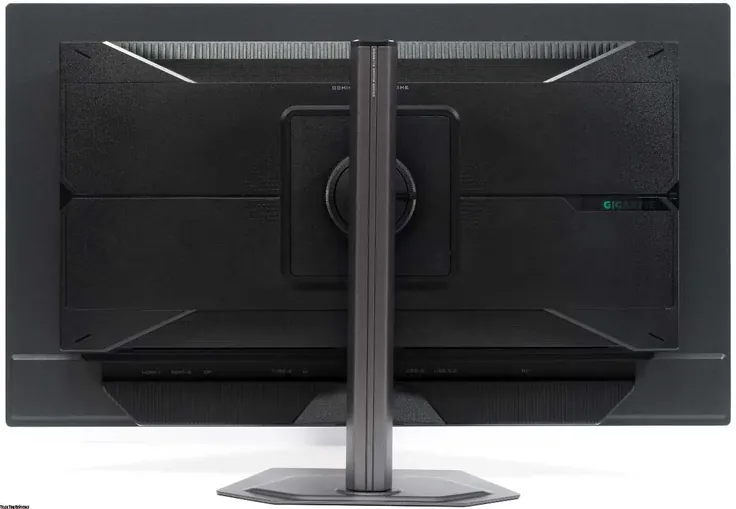
The 27-inch QD-OLED monitor ships disassembled. The user must connect the stand to the base themselves—no tools are required because the quick-release connection significantly simplifies assembly.
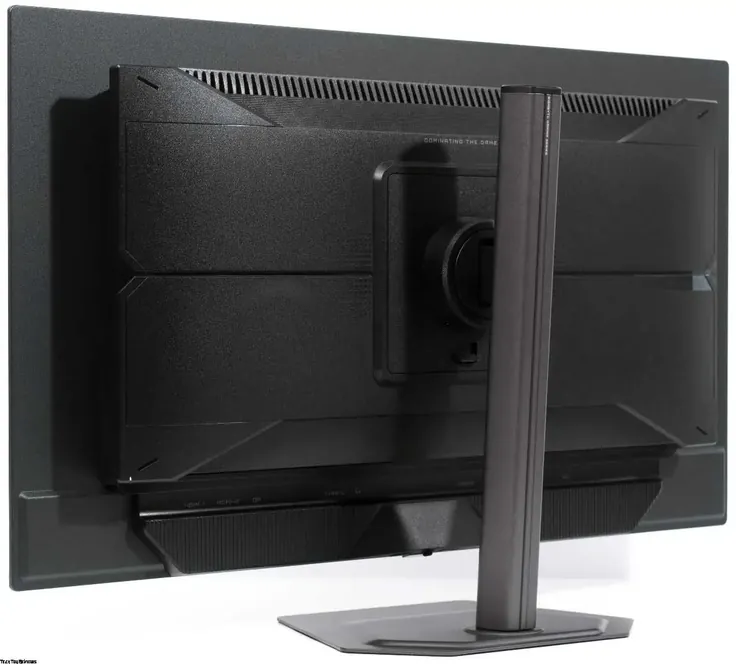
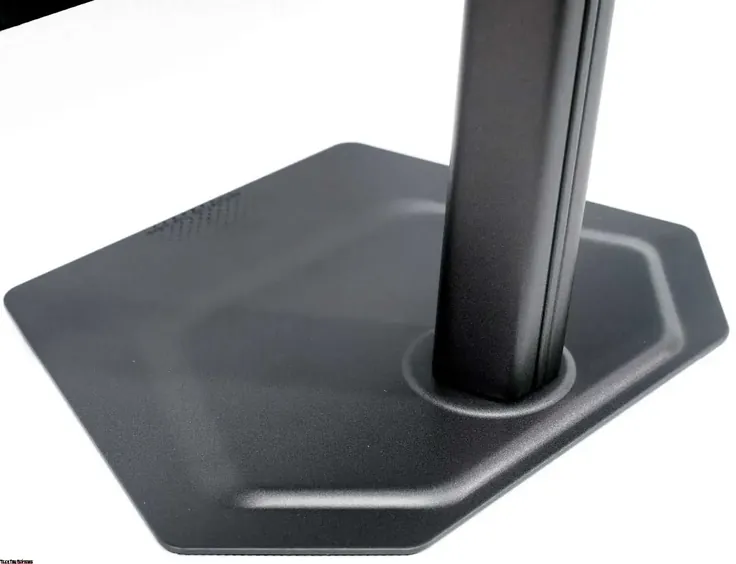
The designers have noticeably updated the stand itself: it now looks more elegant and modern. They have made the central metal stand more compact and neat, and reduced the size of the base – it now consists of a thin but durable molded sheet of steel with a dark gray powder coating. It looks impressive and expensive.
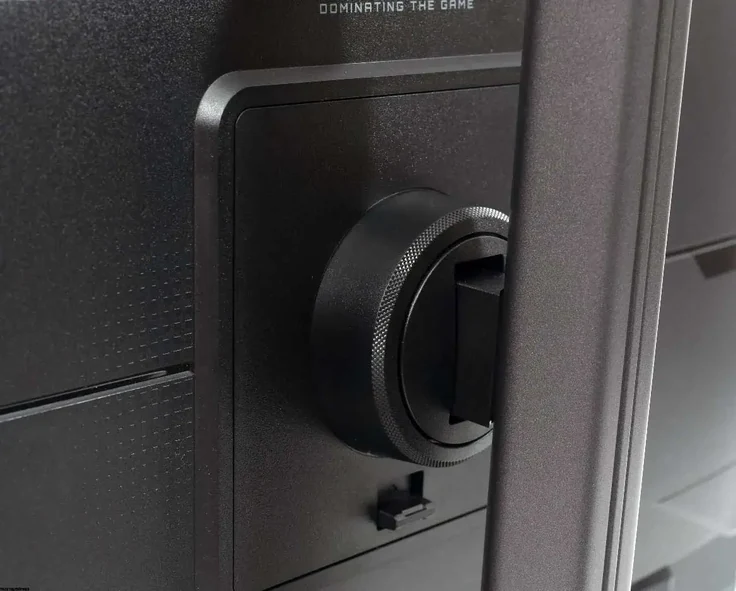
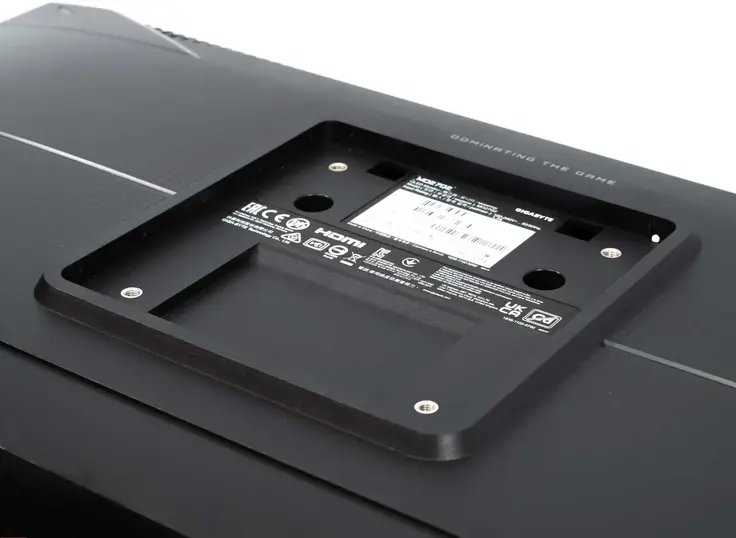
A plastic holder is provided for laying cables, moving along the entire height of the rack. It has no fixed positions, but the solution is convenient and well-thought-out, with a position lock due to a plastic “lock”.
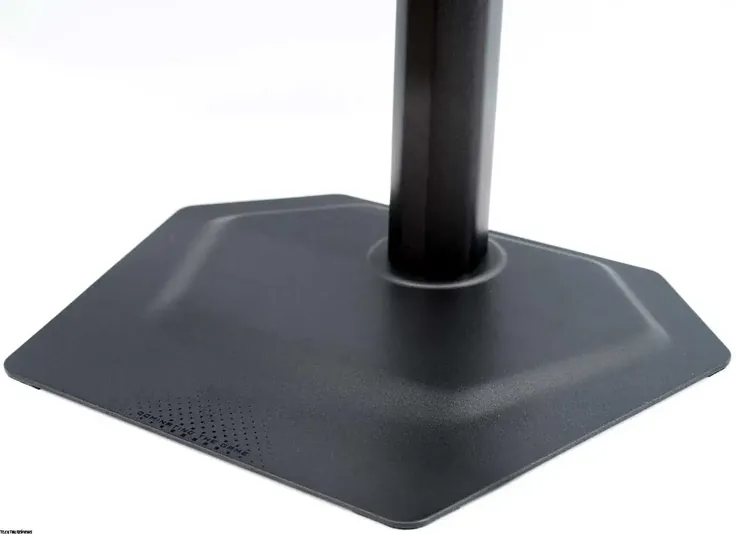
The stand supports three types of adjustment: tilt from -5 to +21 degrees, body rotation by 15 degrees in each direction, and height change within 0-130 mm.
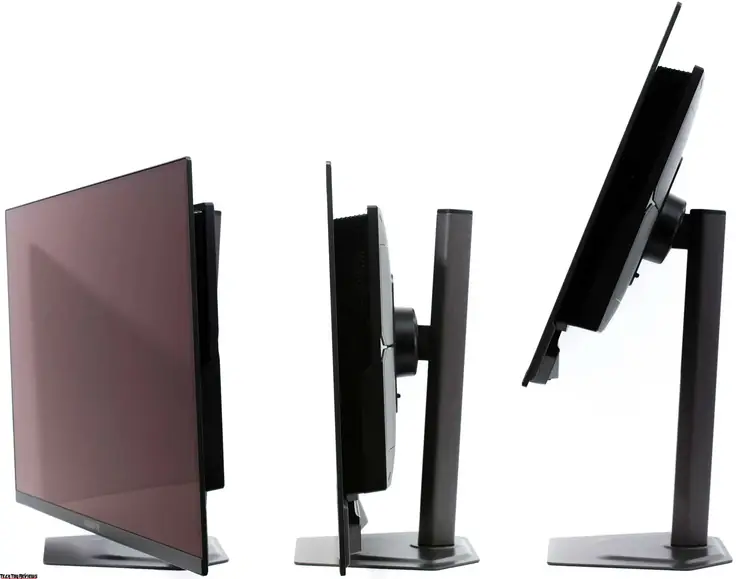
It is also possible to rotate to portrait mode (Pivot), but only in one direction. When returning the case to landscape orientation, setting the horizon level is quite simple, but there is no fixed position.
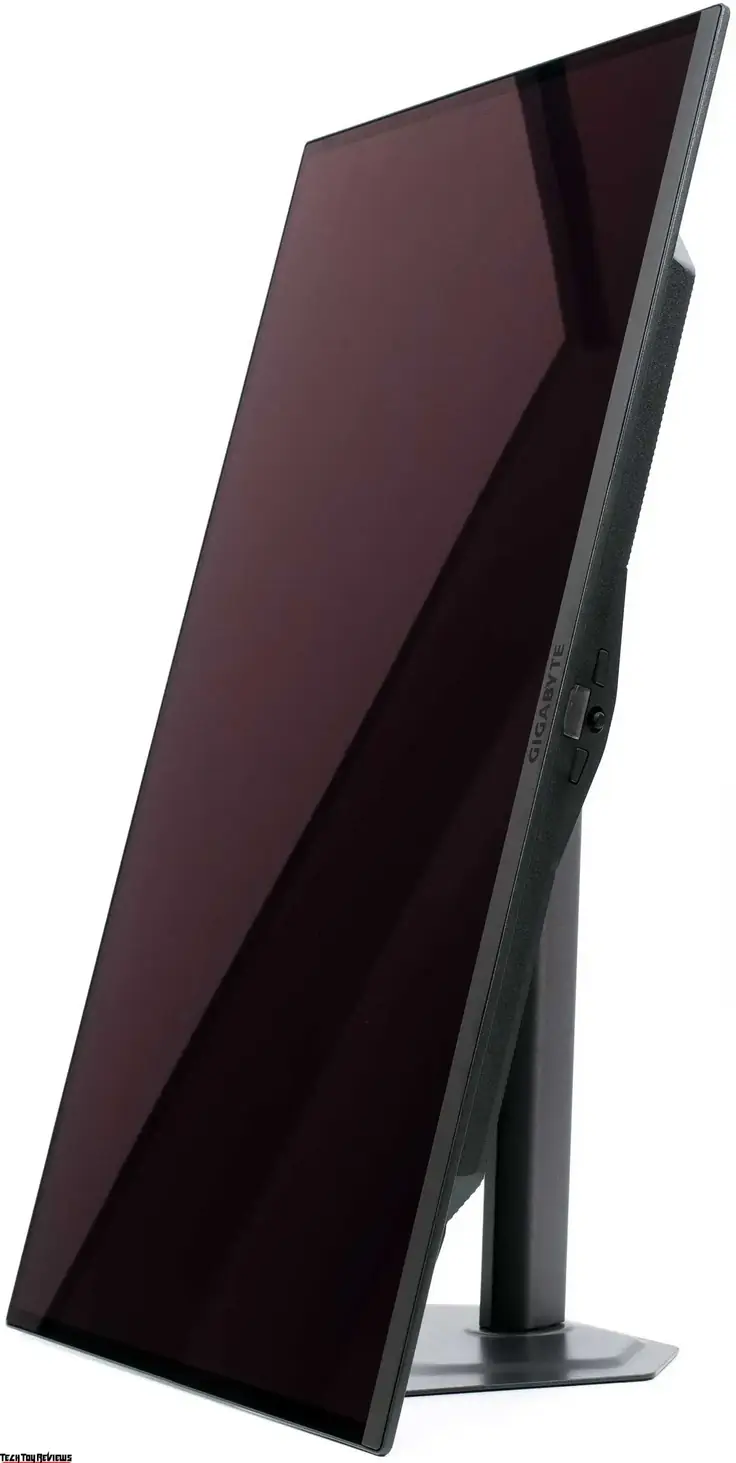
The flat, all-metal base platform ensures the reliability and stability of the structure. All monitor parts are connected with minimal gaps. The case is not subject to twisting, does not crunch or creak when changing the position of the case on the stand.
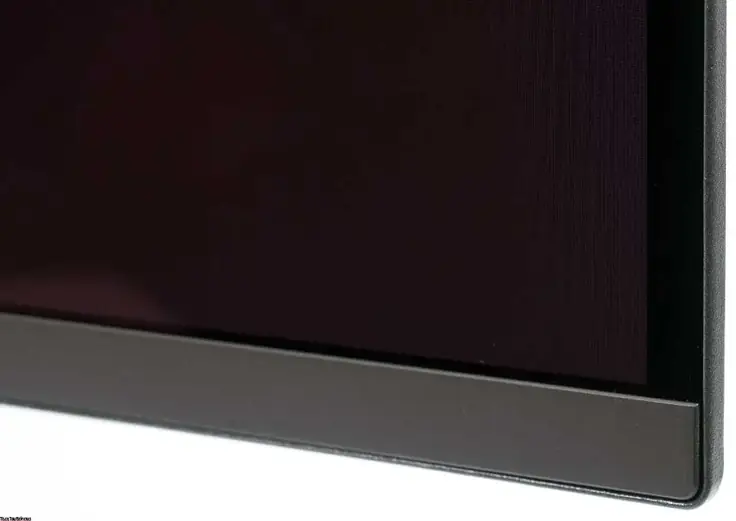
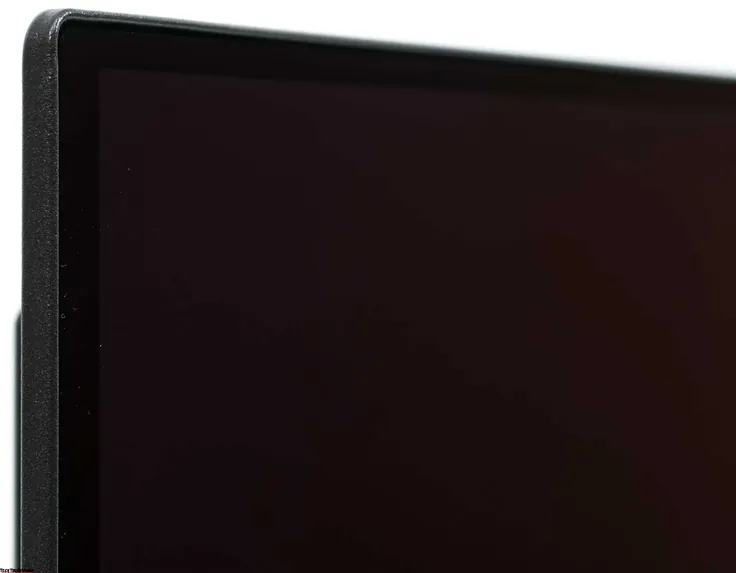
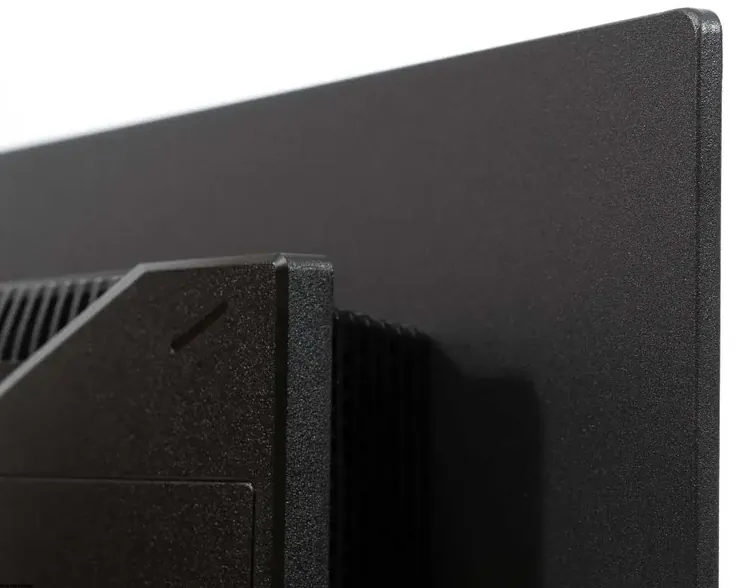
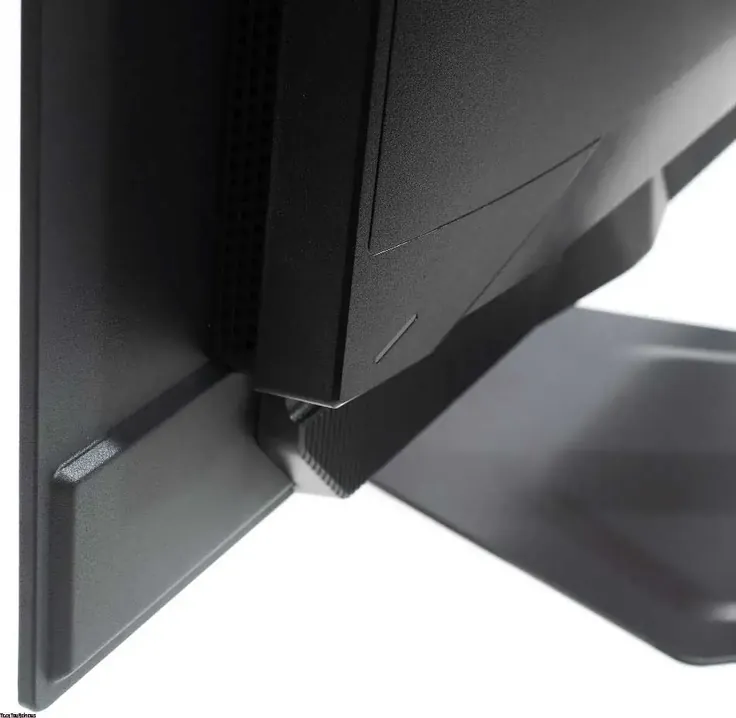
The build quality of this 2K 240Hz gaming monitor is excellent. The processing of the case parts is flawless. The paint is even, and the manufacturer uses glossy plastic very little—the case has a matte finish, resists dirt, and suits everyday use perfectly.

All ports in the Gigabyte MO27Q2 are located on one elongated block and are directed downwards. Thanks to the ability to flip the screen into portrait mode, connecting cables is quick and straightforward.
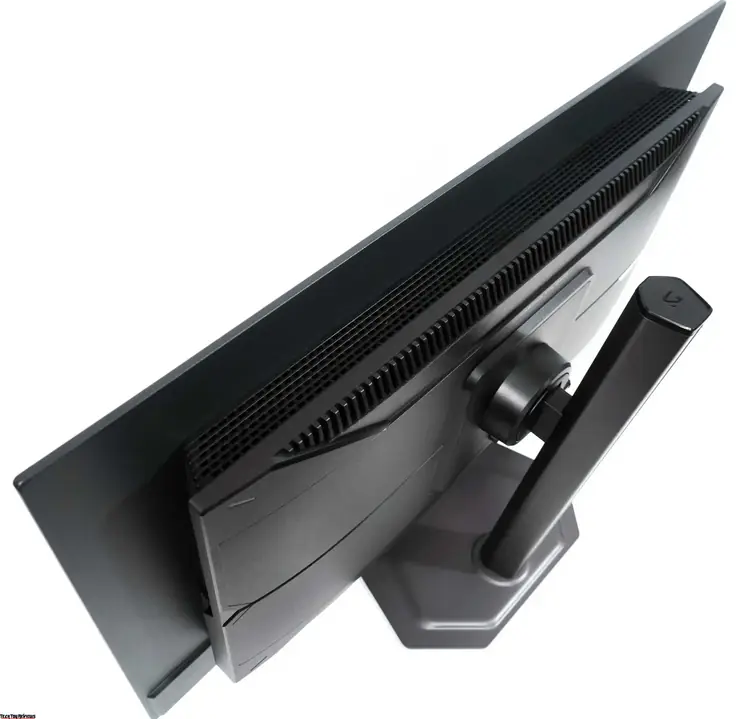
The 27″ 240Hz gaming monitor includes a built-in speaker system with a total power of 10 W (2 speakers, 5 W each). The ventilation slats in the upper part of the case house the speakers. The maximum volume is sufficient for everyday tasks, but the sound remains flat, with virtually no low frequencies.
Menu and Control
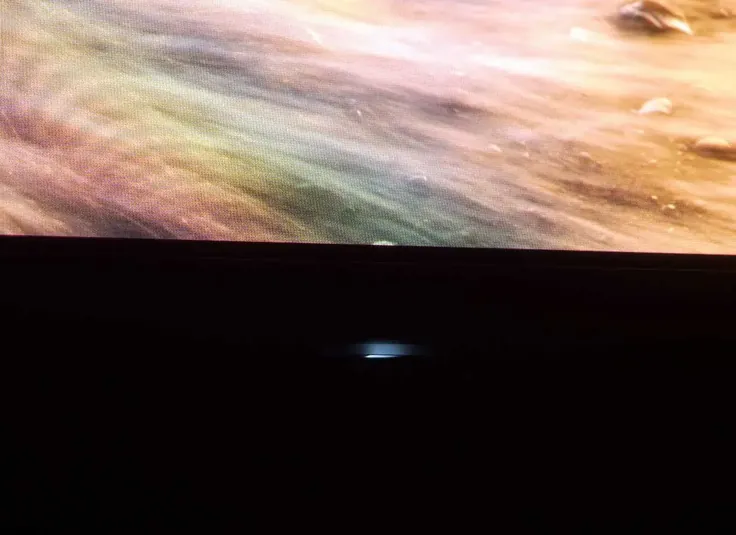
The basis of the 27″ QHD gaming monitor control system is a five-position joystick located on the lower edge of the case, precisely in the middle. The joystick is combined with the power button. Next to it is a power indicator, with the direction of the light flow down and forward.
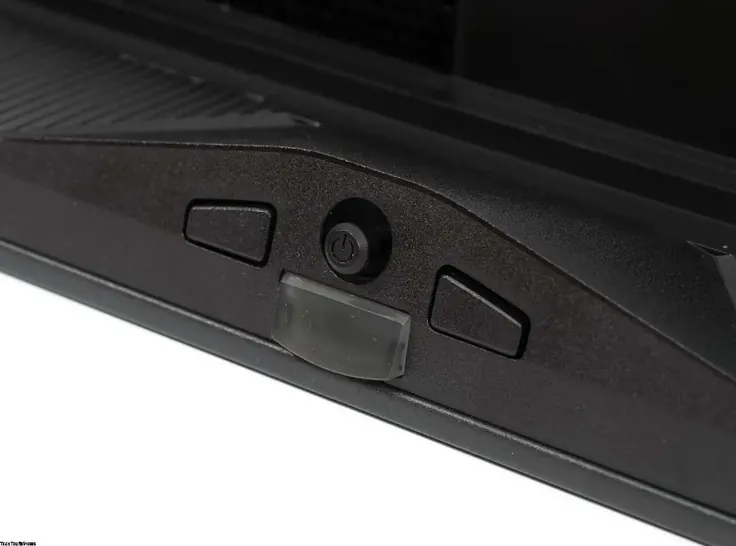
In operating mode, the indicator lights up white, but you can turn it off or leave it only in Standby mode (in which case, it lights up orange).
Next to the joystick are two additional keys. One of them quickly switches the KVM source, while the second activates the Tactical Switch function, which imitates a 24-inch monitor and reduces the working area of the screen to Full HD (without increasing the frequency, as Dual-Mode solutions do). This is convenient for those who want maximum concentration in competitive games, especially in shooters.
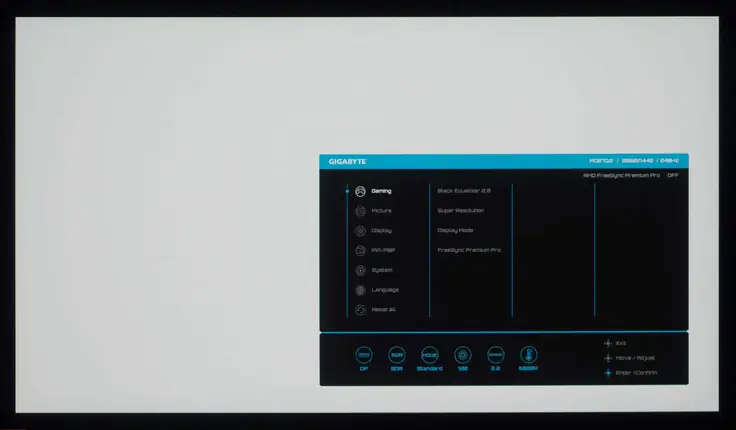
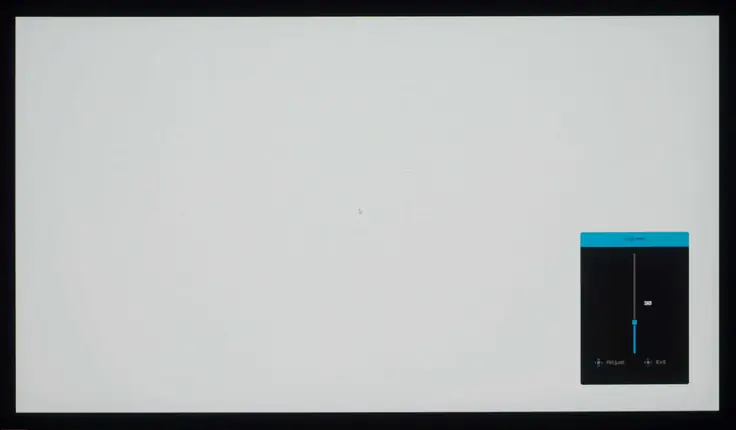
When you press the joystick, a familiar block of five navigation buttons appears at the bottom of the screen. Thanks to them, you can go to the main menu, turn off the monitor, and quickly get to the GameAssist settings and the OLED Care section.
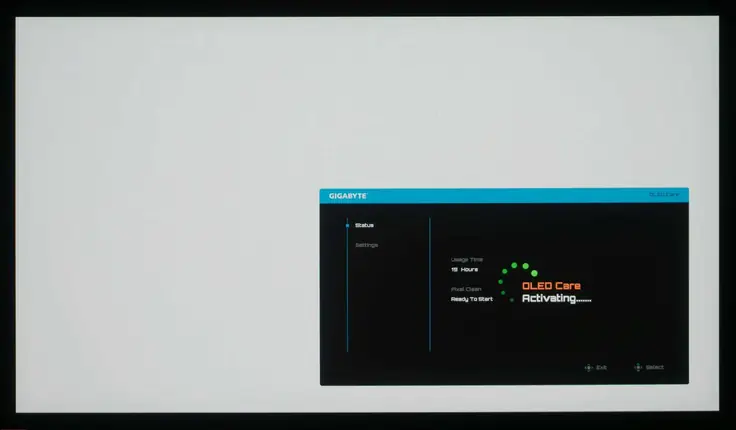
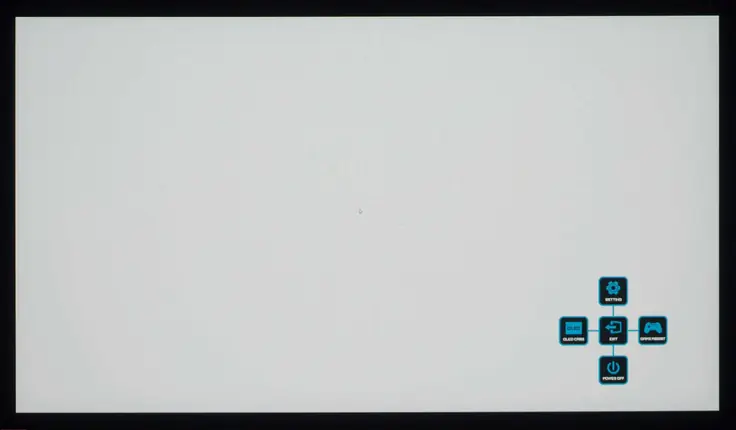
The menu is divided into six main sections, with a seventh option dedicated solely to restoring all settings to their factory defaults.
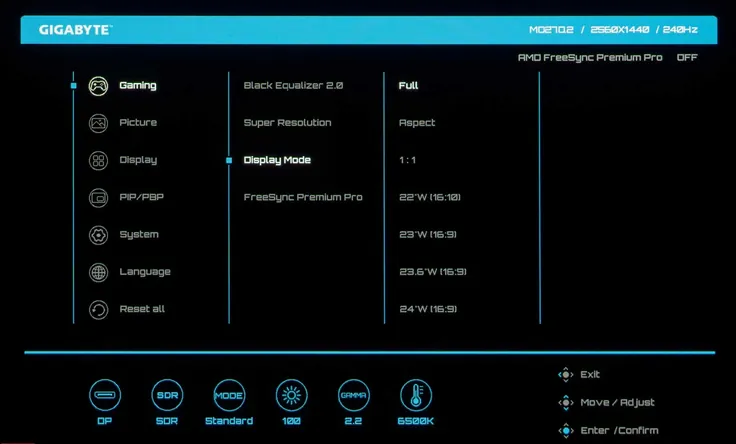
1. Gaming Section
- Gaming parameters for optimization:
- Black Equalizer 2.0 to enhance visibility in dark scenes
- Super Resolution for increased clarity (not recommended for frequent use)
- Display Mode for changing the scaler/display configuration
- Activation of AMD FreeSync Premium Pro
- G-Sync Compatible support
2. Picture Section
- Main image settings:
- Brightness
- Contrast
- Gamma
- Sharpness
- Color temperature
- Saturation
- ECO mode:
- Enabled by default to reduce energy consumption
- Must be disabled for manual adjustment
- Preset picture modes:
- Multiple modes for different viewing preferences
- HDR mode (if enabled in the OS):
- Additional parameters for HDR content
- Most settings don’t impact peak brightness except HDR Peak 1000
- APL Stabilize (from OLED Care) primarily affects brightness, including SDR mode
- Changing APL Stabilize in SDR has minimal practical effect and can cause eye strain
3. Display Section
-
- Choose the signal source
- Set the RGB range
- Enable/configure KVM
- Apply image settings to a specific interface or globally
4. PiP/PbP Section
- Extensive customization options for:
- Picture-in-Picture (PiP)
- Picture-by-Picture (PbP)
5. System Section
- General system settings:
- Adjust volume for headphones or built-in speakers
- Reassign hotkeys
- Modify interface transparency
- Additional options:
- Disable resolution notifications
- Customize power indicator behavior
- Enable auto power off and auto source switching
- Activate/deactivate USB Type-C (DP Alt Mode) and USB 3.2 support
- Disable USB Type-A 3.2 charging when the monitor is inactive
6. Language Section
- Selection of menu language/localization options
7. Reset All Section
- Quickly restore all settings to factory defaults
8. OLED Care Section
- Panel protection features:
- Pixel shift
- Logo brightness control
- Auto-cleaning
- New solutions:
- APL Stabilize with three brightness stabilization modes
- Corner Dim (darkening screen corners, enabled by default)
- AI-based dimming for static logos
Being a modern OLED solution, during the entire Gigabyte MO27Q2 review, there were no warnings about the need to take a break or run a screen “cleaning”. This means that the monitor automatically performs preventive procedures – for example, when switching to sleep mode. As a result, the screen always remained in a good, stable condition, without user intervention.
Gigabyte MO27Q2 review test
Color Gamut
The MO27Q2 27-inch 2K gaming monitor uses a modern QD-OLED panel with an extended spectrum, providing high color coverage:
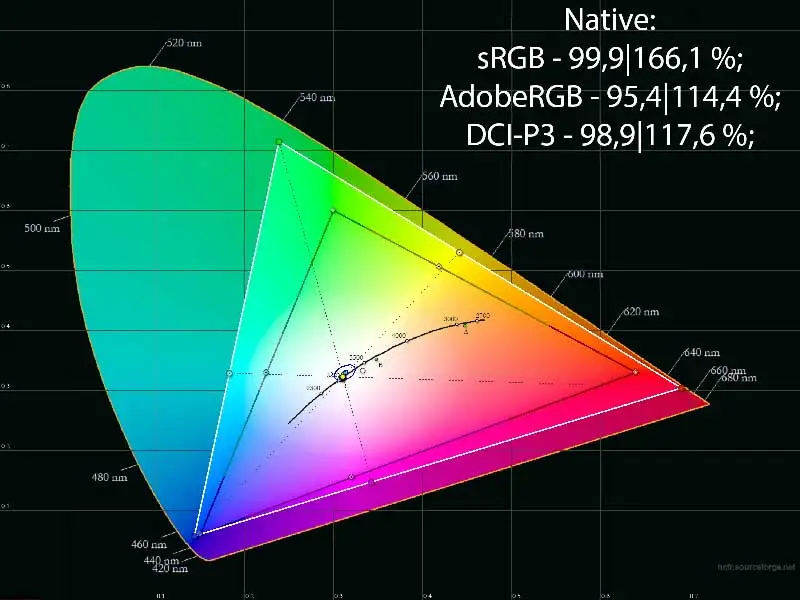
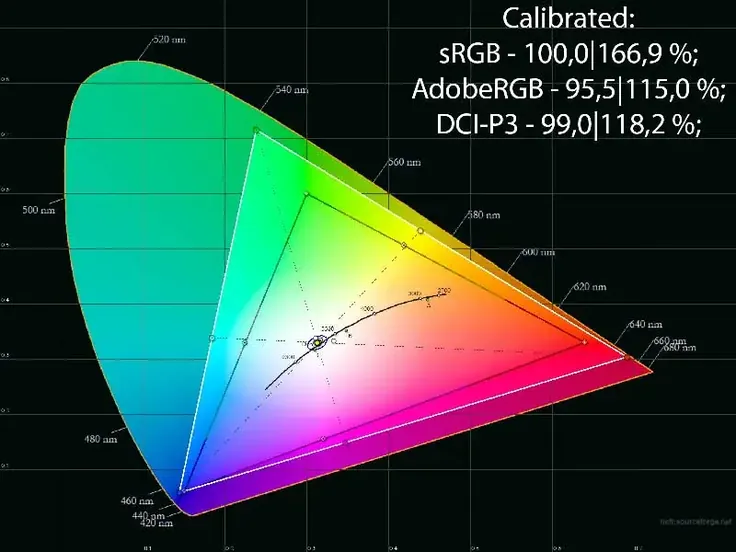
Two of the three reference points noticeably shift in space relative to the standard sRGB color standard in the screenshots, surpassing it in many areas. At the same time, the Gigabyte screen is perfect not only for working with the modern cinematic DCI-P3, providing its coverage by 98-99% depending on the display settings, but is also close in capabilities to the printing AdobeRGB, reaching an impressive 96%.
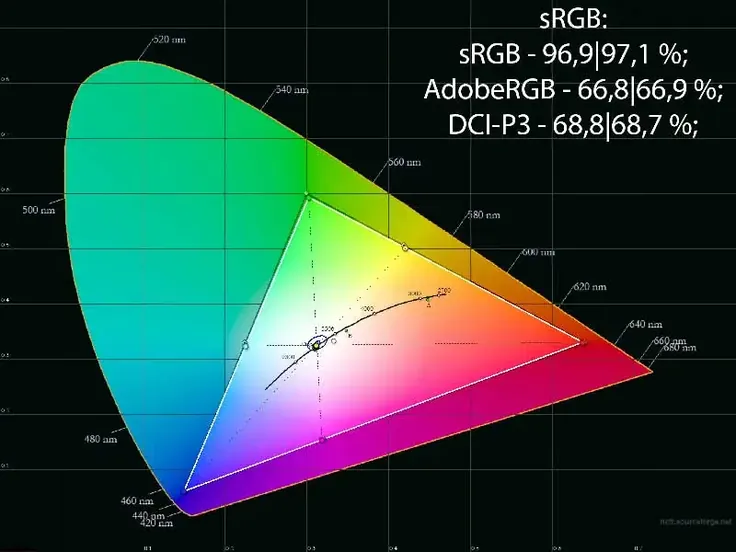
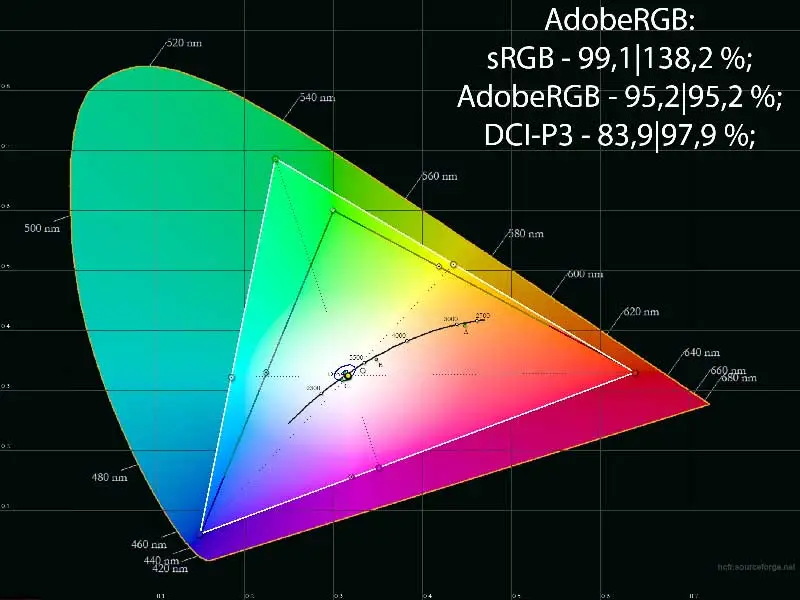
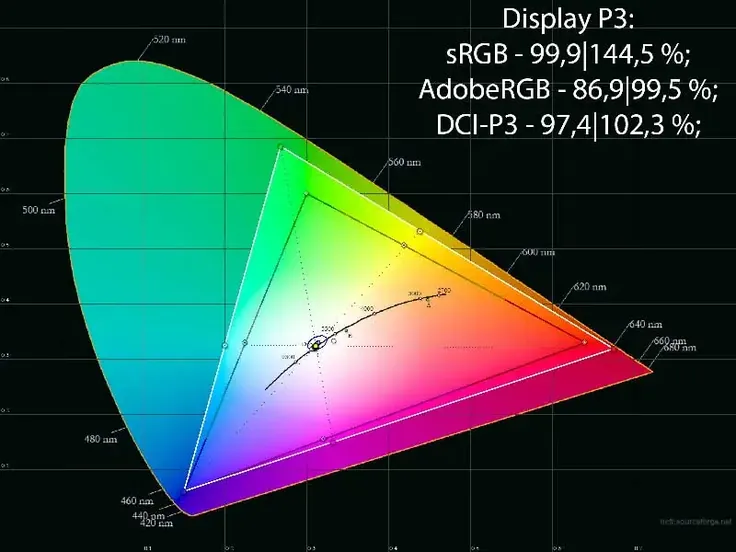
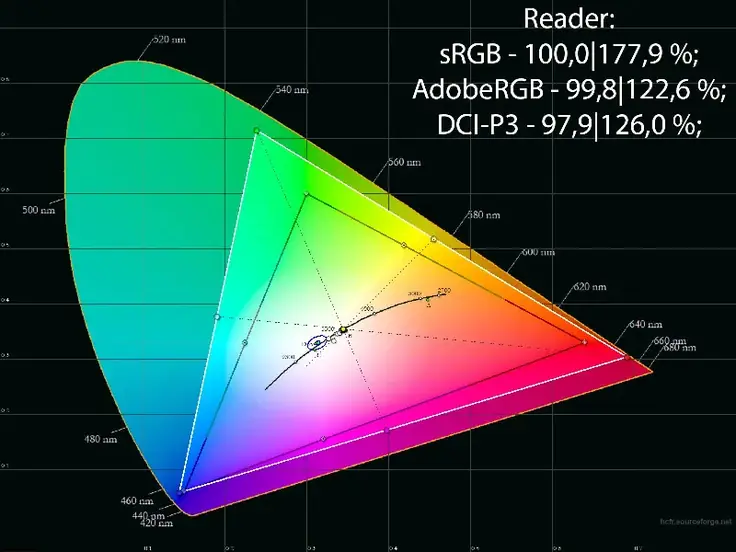
You can quickly narrow the color gamut by switching to AdobeRGB and Display P3 modes through the color gamut setup in most available Picture Modes or through a separate sRGB preset with the corresponding emulation.
The emulation is performed with a reasonably high accuracy and within the limits of the initially embedded capabilities of the panel used. For a gaming monitor, the result is more than worthy. If maximum accuracy is needed, then you still cannot do without creating an individual color profile.
As for the eye strain reduction mode called Reader, in it, the coverage, judging by the figures obtained from Argyll CMS, increases to the maximum. However, visually, there is no shift in the reference points on the CIE diagram.
Suppose you always work with the full-color gamut. In that case, you can combat excessive oversaturation where it should not be, using suitable ICC/ICM profiles and software with regular support for the color management system (CMS).
Brightness, Contrast, and Basic Color Rendering
This 27-inch 240Hz gaming monitor in review has a large number of gaming modes in its settings, an sRGB emulation preset, a Reader mode to reduce eye strain, and one for fully manual edits (Custom). For most Picture Modes, a choice of working color space is available (Native, AdobeRGB, and Display P3).
The default mode should be regarded as Standard, with the following settings:
- Brightness: 85
- Contrast: 50
- Color Space: Native
- Black Equalizer 2.0: 0
- Sharpness: 5
- Gamma: 2.2
- Color Temperature: Normal
Let’s now review the outcomes observed in the tested modes, as shown in the table below:
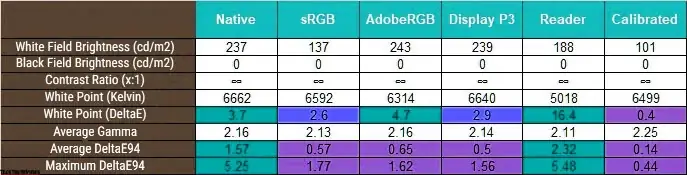
In this Gigabyte MO27Q2 review, we chose to focus our in-depth analysis on only the most useful of the available presets. Considering that we have an OLED in front of us, you shouldn’t count on high brightness. It’s simply extremely decent here, especially if you don’t work in direct sunlight. The display optimally configures a separate sRGB mode — the brightness at 100% screen coverage stays below 137 nits. The Color Space settings emulate AdobeRGB and Display P3 submodes, showing a brightness level similar to Native, but users can freely adjust this brightness… and only this — the system locks all other parameters in the emulation modes.
In terms of white point adjustment accuracy, the 27-inch QHD gaming monitor confidently demonstrates an average result, which shifts to “above average” in sRGB and Display P3. In Reader, everything is typical – the color temperature is set to 5000K, which is in Warm mode. No magic.
The first four modes listed in the table have very similar, well-calibrated contrast settings, with average gamma values ranging from 2.14 to 2.16—an excellent performance. In Reader mode, the gamma is intentionally lowered to soften contrast and help minimize eye strain.
In terms of overall color accuracy, we can safely award the Gigabyte MO27Q2 gaming monitor with a high refresh rate a ‘medal of merit’—it performs at least as well as a massive number of professional LCDs and, with some ‘buts,’ users can rely on it for working with color at any level in its current configuration.
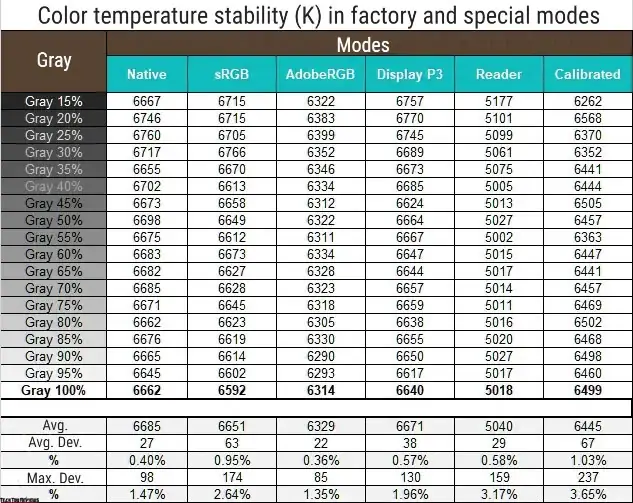
The 27-inch QD-OLED monitor demonstrated a high level of CT stability in all the modes studied – an excellent result. You can use any of them and remain confident in the absence of parasitic shifts in shades of gray.
To reach a brightness of 100 nits, a 6500K white point, and further enhancements in Standard mode, we applied these settings:
- Brightness set to 37
- Contrast at 50
- Color Space set to Native
- Black Equalizer 2.0 set to 0
- Gamma set to Off
- Color Temperature set to User Define (96/99/98)
Manual edits allowed us to reduce the brightness to the desired level and set the white point close to 6500K with minimal deviations. In this mode, the color gamut remained close to the maximum available for this type of panel. And by changing the Gamma mode, we ensured minor edits in the graphics card LUT during subsequent calibration with the creation of a correction profile – this is important for the final result.
After applying the created profile, the color accuracy increased to 0.14 DeltaE94 on average and 0.44 at maximum – a result with which you can not worry about the accuracy of the image within almost any of the three main ones (sRGB/Rec.709, AdobeRGB, and Display P3).
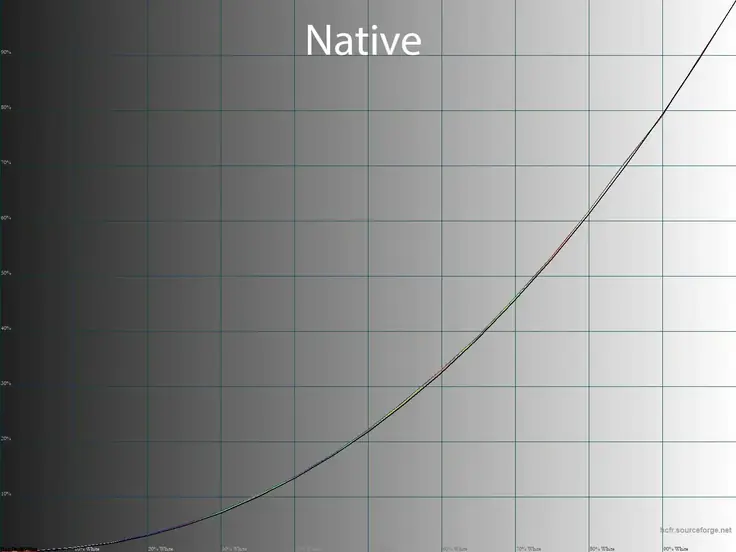
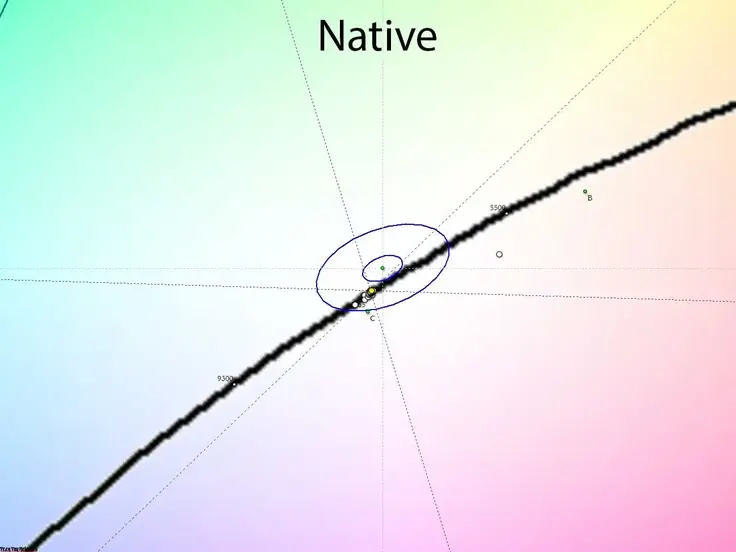
With standard settings, the measured gamma curves are close to the reference, and shadows are slightly distinguishable, which for QD-OLED is progress for default settings. There is no RGB imbalance; the stability of the grayscale color temperature is the envy of any LCD.
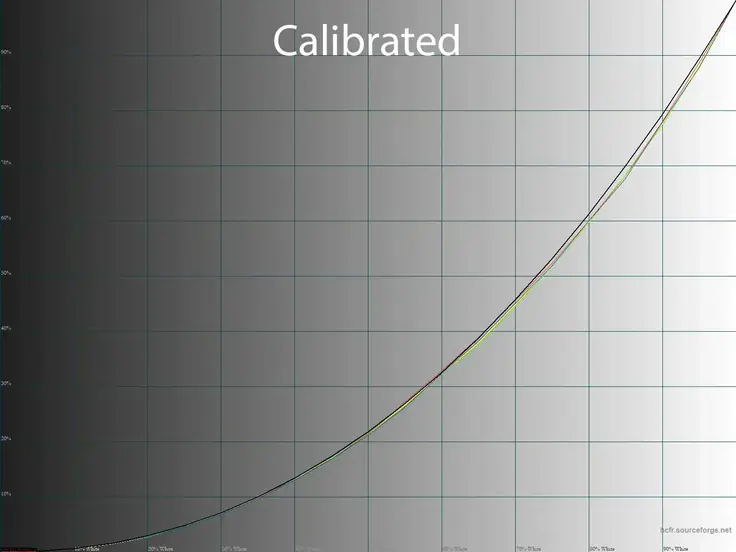
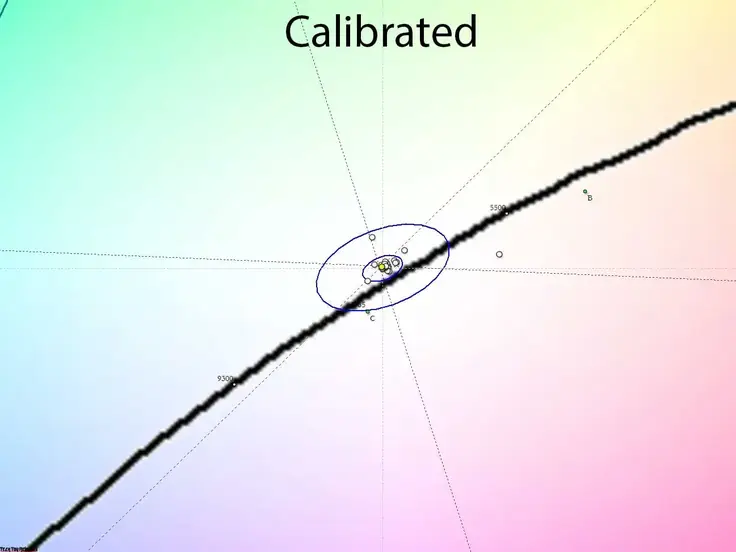
Calibration, together with the creation of an individual color profile, enabled color rendering to meet industry standards and provided the system with all the necessary information about the display capabilities at the maximum capabilities of the panel. DeltaE94 deviations decreased to the required level, the gray balance remained at a high level, shadows became distinguishable, but the overall accuracy of gamma curves decreased – a common situation after OLED adjustment.
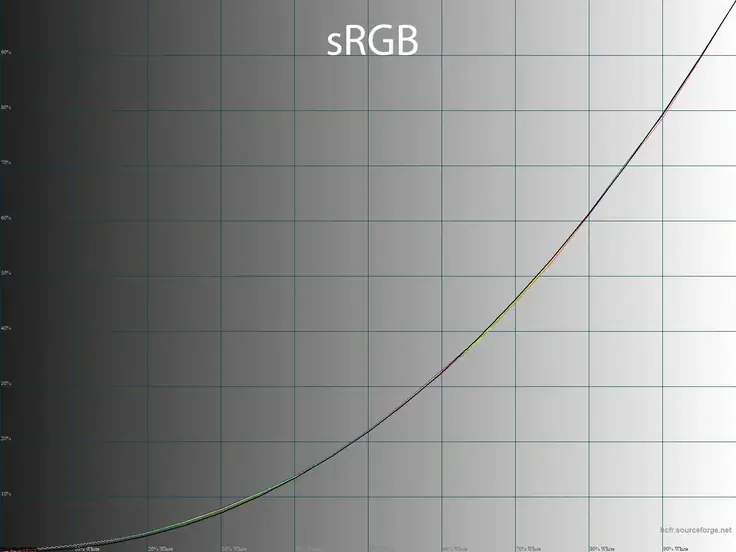
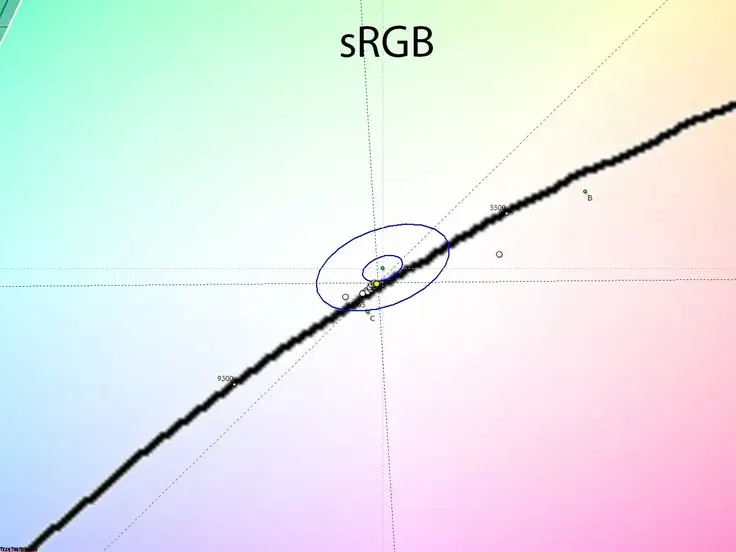
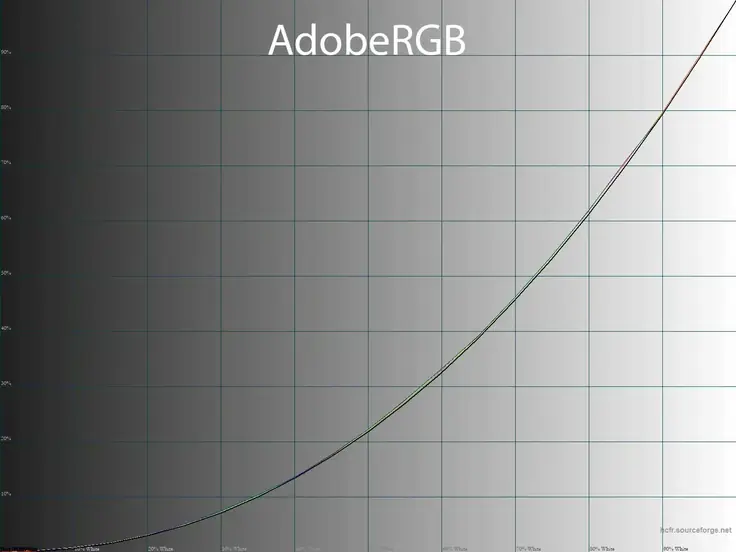
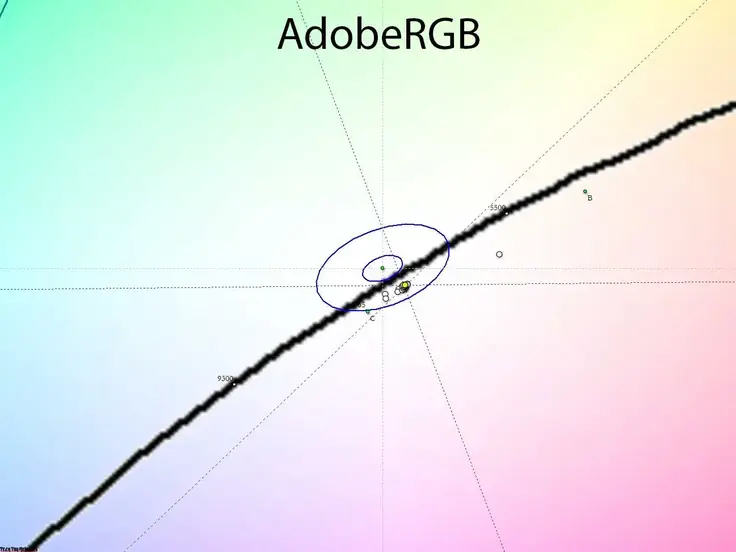
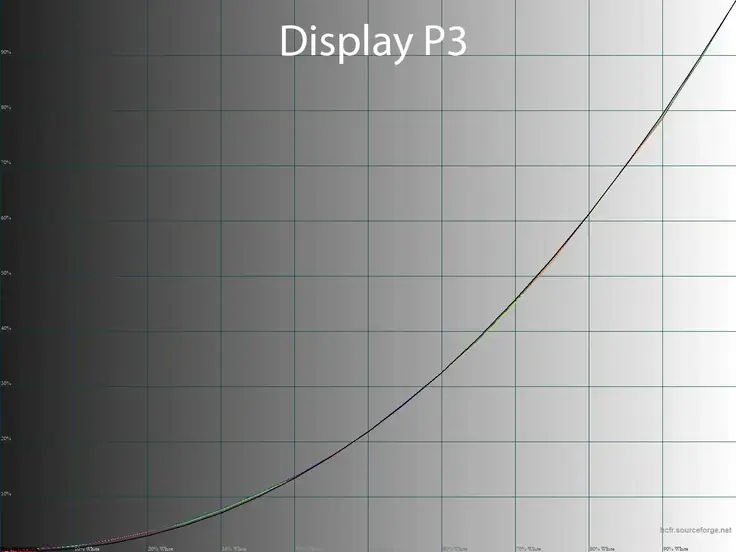
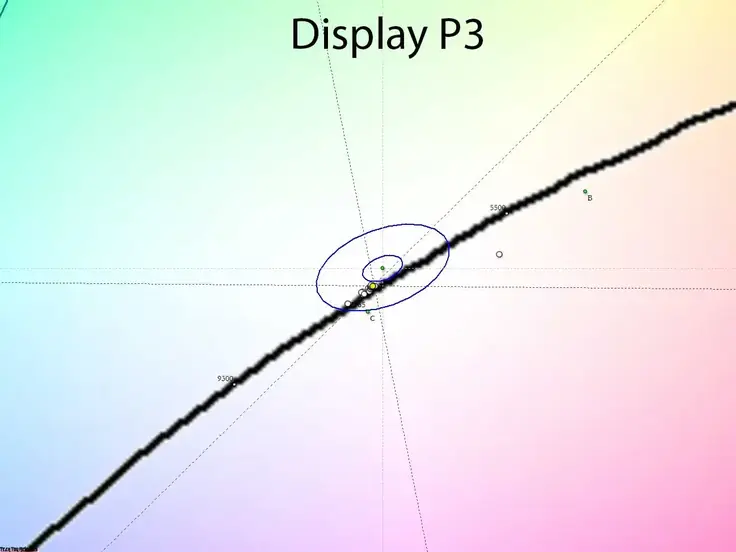
The emulation modes, as we noted above, are configured extremely well. The color palette changes significantly in each of them, and the required color space is established. The white point and gray balance in some of them are configured better than with the default settings, but you cannot change the RGB Gain value manually in them – the function is blocked. The gamma curves are set close to the average value of 2.15, but shadows are visible only in sRGB.
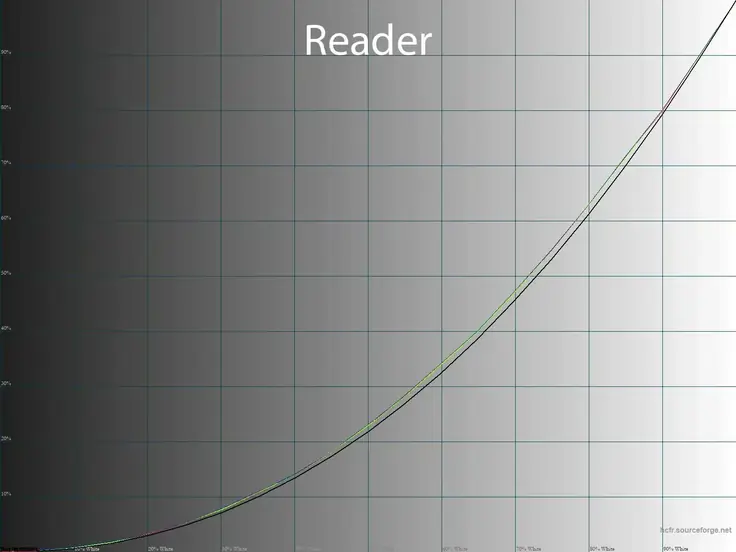
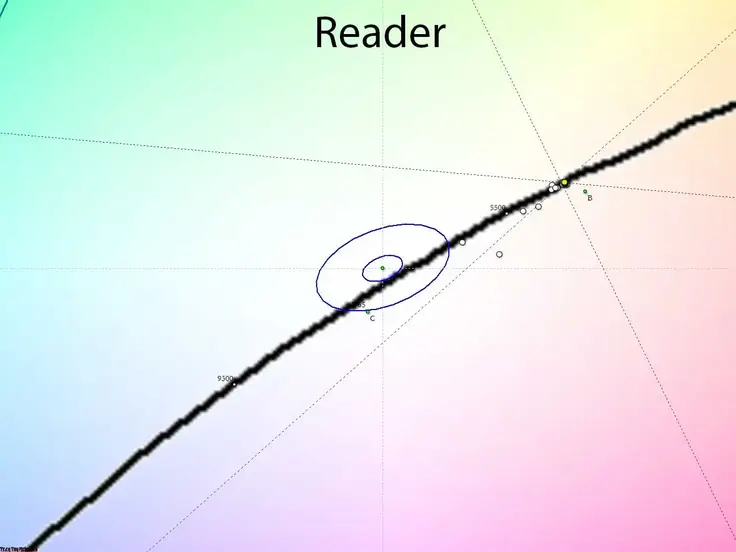
In Reader, the manufacturer reduced the picture’s contrast (it seems that Gamma — Off mode is selected) and gave it a warmer tone (Color Temp. — Warm mode). The gray balance stays high, and the brightness drops to only 188 nits at the central point, though you can safely lower it by another couple of dozen percent. Overall, these settings reduce eye strain, but we cannot say that the changes are drastic. The manufacturer could have additionally raised the black point and reduced the average gamma to reduce the picture’s contrast entirely, but they did not do so. Therefore, we can rate the mode at a maximum of 3.5 out of 5.
Additional Features
The Gigabyte MO27Q2 has additional parameters that affect the accuracy of color rendering and can increase the comfort of working at the monitor in different lighting conditions.
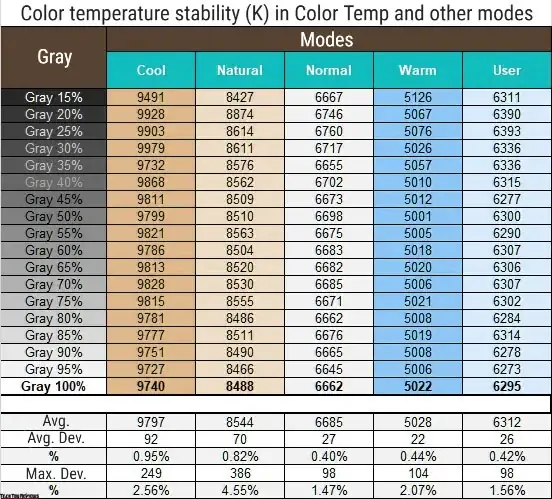
So, additional color temperature modes fully justify their names and offer an excellent level of stability of the grayscale color temperature. You can safely use any of the preset modes for your tasks and requirements, but you should switch to manual (User Define) only if you want to adjust the values to a particular standard. Otherwise, you should stick to the Normal mode, set by default.
This 27-inch QD-OLED monitor offers six available gamma modes. By default, Gamma is used with a classic value of 2.2, from which the model turned out not to be far. Otherwise, the higher the number, the higher the contrast and vice versa – everything is simple here.
Contrast, White Point Stability, and Brightness Range
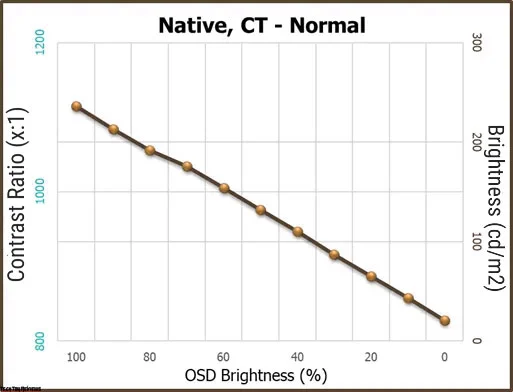
To study the stability of contrast and the range of brightness changes, we first set the Standard mode with other default settings (CT – Normal). We then changed the Brightness value from 100 to 0% in 10-unit increments.
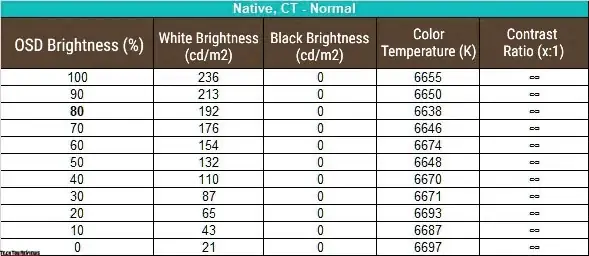
The range of 21-236 nits turned out to be similar to solutions from competitors and, accordingly, well known to us – this is a typical level for modern QD-OLEDs in the third generation with adequate color temperature settings. We should also note that the color temperature remains extremely stable during brightness adjustment—differences do not exceed 50-60K. This result is excellent and alternatives based on W-OLED can only dream of achieving it.
When the fill level was reduced to 2%, the working brightness range changed insignificantly, from 21 to 247 nits. Thus, the Gigabyte screen came as close as possible to the brightness level of the TX. No questions.
To achieve the highest possible figures in our Gigabyte MO27Q2 review, we tested the Gigabyte monitor’s behavior not only with factory settings in HDR, but also after activating HDR Peak 1000 at different screen fill levels (APL).
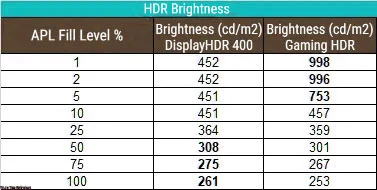
The table above clearly demonstrates the difference between the modes. With default settings in HDR, the monitor uses APL Stabilize at the Middle level, which ensures that it meets the VESA DisplayHDR 400 requirements. To achieve peak values, you need to switch to HDR Peak 1000 mode and set APL Stabilize to the High level. The first mode has slightly better elaboration of deep shadows, the second has high brightness values with a small screen fill, as the manufacturer promises in the device’s TX. The choice of the most suitable preset is up to you.
Gradients Uniformity
The 10-bit QD-OLED panel installed in the Gigabyte MO27Q2 27-inch 240Hz gaming monitor (with or without FRC – we can only guess) demonstrated relatively uniform gradients in most of the tested modes.
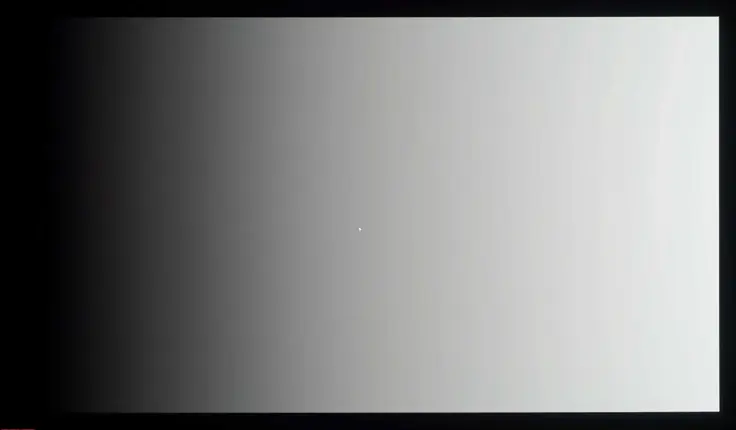
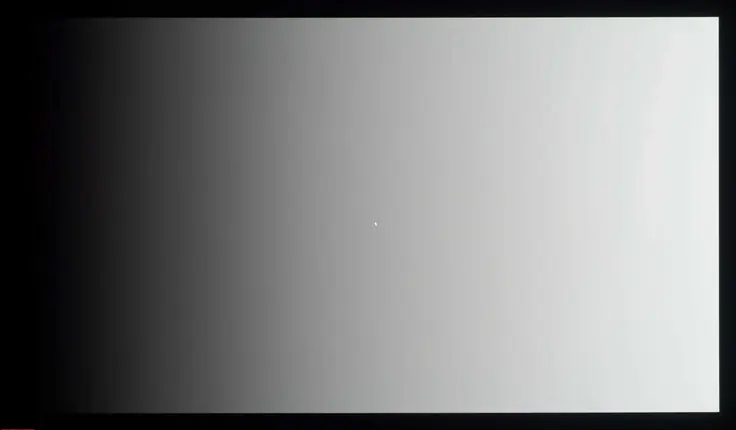
After reducing the brightness to a low level, the quality of the gradients drops slightly, several sharp transitions with various parasitic shades appear, the picture becomes a little “dirty” – with fine dynamic noise in deep shadows, which will be noticeable if you look at the screen at a close distance or use a large number of applications with a dark interface (GUI).
It should be noted that the latest generation of QD-OLED panels demonstrates much higher results in the test for the quality of tonal transitions than their competitors on W-OLED.
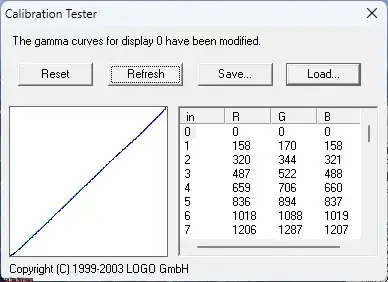
QD-OLED panels maintain relatively high performance throughout the entire brightness adjustment range, whereas W-OLEDs sharply reduce quality and dynamic range even after lowering brightness by just 15-20% from the possible maximum (especially in the first gaming models based on them).
After calibration and application of the created profile via the graphics card LUT, the quality of tone transitions decreases – areas with parasitic shades appear. This is a common phenomenon, nothing new.
Response Time and Refresh Rate
For the MO27Q2, the Gigabyte declared 0.03 ms GtG, which has already become a classic for OLED, as well as a maximum vertical refresh rate of 240 Hz without the need to activate additional overclocking (that is, this frequency is native to the panel).
During this Gigabyte MO27Q2 review, we do not use the controlled Overdrive acceleration technology, and there is no “black frame insertion” system, which is quite effective in the case of OLED with a frequency of up to 240 Hz. Thus, the user has no options for adjusting either the response time or their visual sensations thanks to additional technologies (MPRT, BFI, etc.). But they are not needed here.
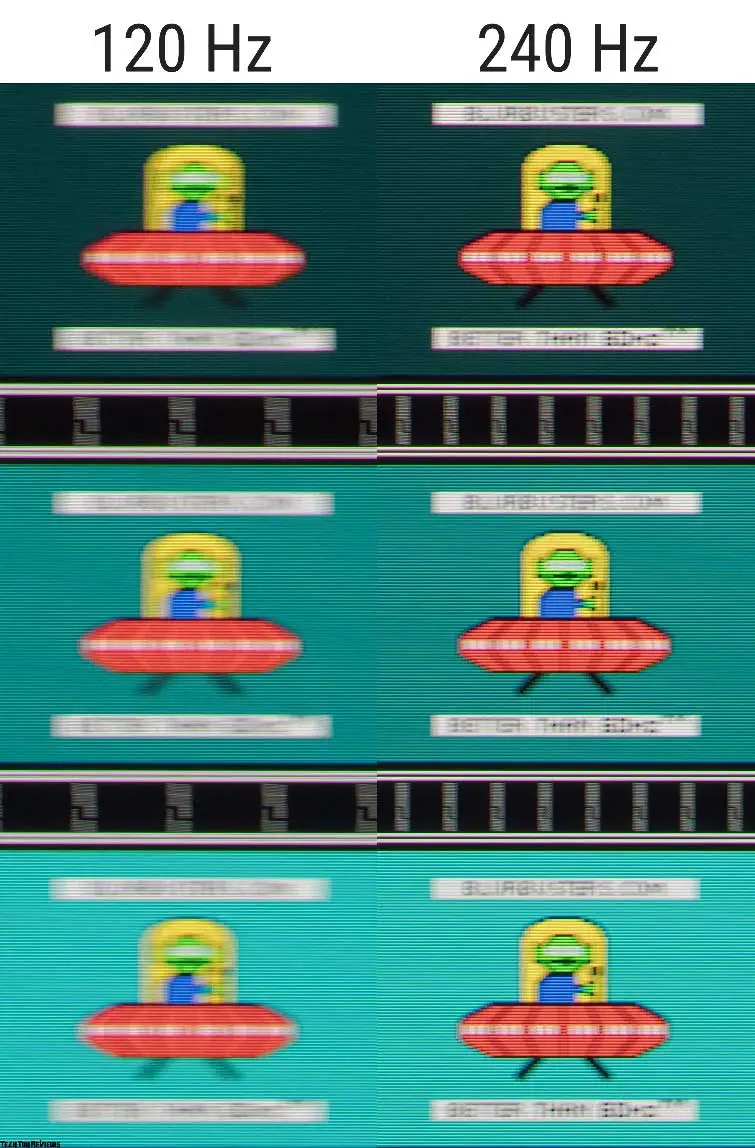
We carried out the speed/response time testing of our Gigabyte MO27Q2 review sample not only using the familiar visual tests (like the TestUFO results presented above).
After this Gigabyte MO27Q2 review testing, we concluded that the clarity of the moving image on this monitor is entirely consistent with the level of a premium gaming monitor, and visually significantly surpasses what the best high-speed IPS representatives from the 240-320 Hz solutions camp can offer in a comparable format.
The display shows minimal blurring and no visually noticeable artifacts. Increasing the frequency from 120 to 240 Hz leads to a significant improvement in the smoothness and clarity of the picture, as shown in the comparison image above.
The monitor’s input lag time at 240 Hz does not exceed 3.1 ms on average – an excellent result for a gaming OLED model.
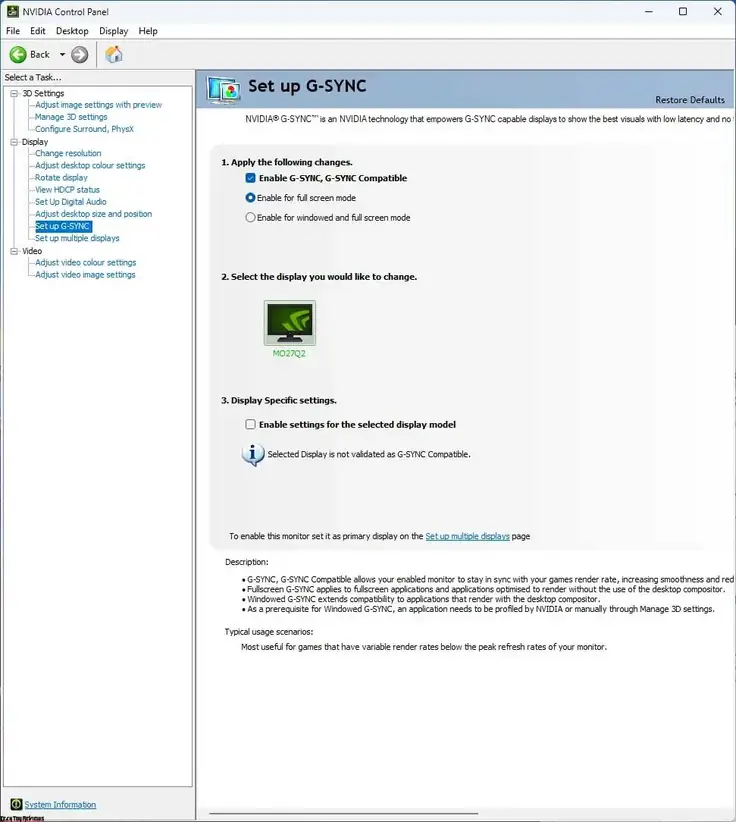
Separately, we note that the Gigabyte MO27Q2 monitor officially supports VRR systems, which indicates full support for open Adaptive-Sync and, of course, implies trouble-free operation with AMD FreeSync Premium (declared formally) and NVIDIA G-Sync in Compatible mode (without an official certificate), which we confirmed during this Gigabyte MO27Q2 review testing. There were no problems, everything works, but only in the range of 48-240 Hz.
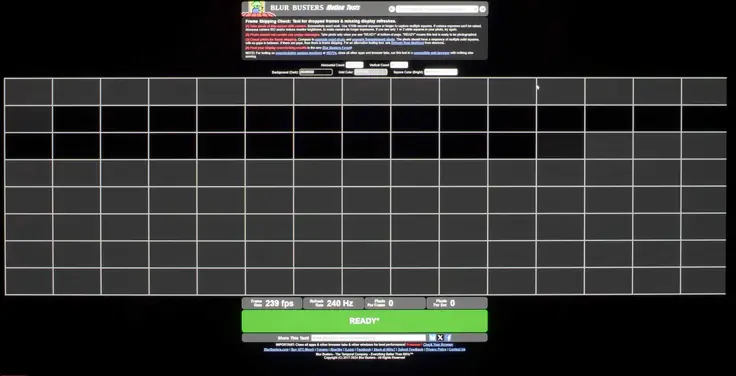
This high refresh rate gaming monitor also has no problems with frame skipping at the maximum vertical refresh rate – 240 Hz.
Viewing Angles
We tested the Gigabyte MO27Q2 OLED monitor shortly after evaluating the Asus ROG Strix XG27ACDNG, and it reaffirmed that OLED technology stands unmatched when it comes to viewing angles and overall picture consistency.
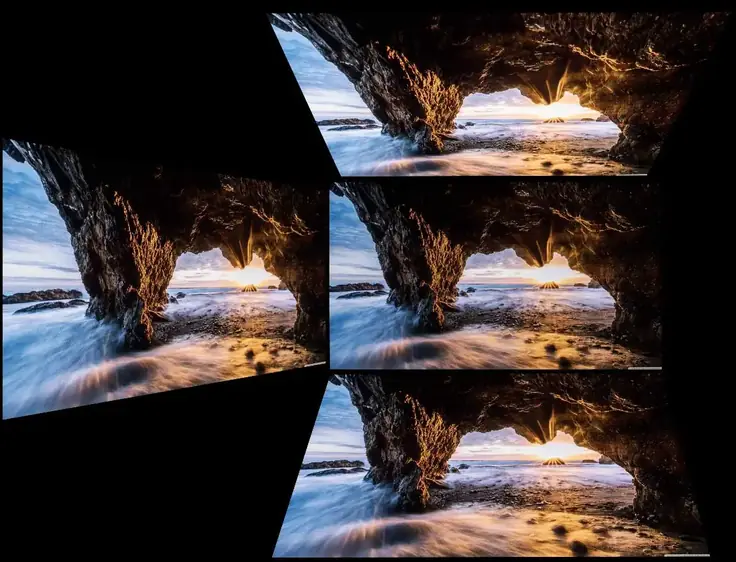
The image above shows everything perfectly. When changing the viewing angle in a wide range, the color and brightness of the picture on the screen of our Gigabyte MO27Q2 review sample change slightly and remain at a high level.
There is no angular or general Glow effect, pasteurization of complex transitions does not occur, and parasitic shades, if they do appear visually, are barely noticeable, including on a completely white field.
Glow and Color Temperature Uniformity
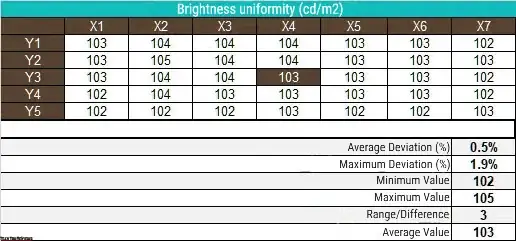
We checked the uniformity of the monitor’s glow and color temperature across the screen field at 35 points with the monitor brightness set to 100 nits. We based all calculations (deviations) on data from the central point.
The model does not have a backlight unevenness compensation system. Still, it does have a brightness compensation function – the APL Stabilize function, which we set to the Low level (this is reasonably sufficient for working in SDR, it is set by default), and we additionally checked the Corner Dim option (but only visually – from a photograph).
The latter, as you can guess from the name, darkens the edges of the image, which helps not only to extend the life of the monitor but also to reduce its energy consumption. By default, the function is enabled, so do not be surprised by the less-than-ideal uniformity of the monitor’s working field “out of the box”.
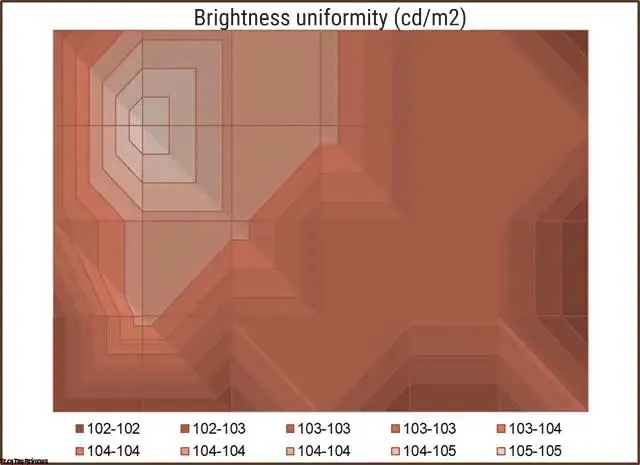
With the Corner Dim function disabled, the average deviation from the center point in brightness was 0.5%, and the maximum was 1.9%. The result is excellent – above 99% of professional LCDs, there is nothing to worry about.
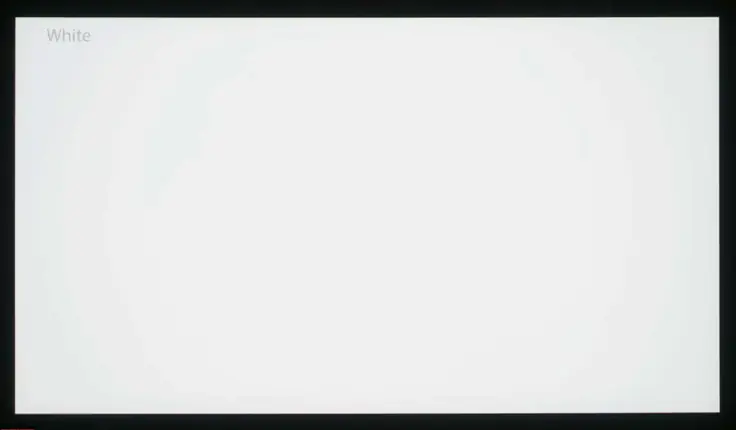
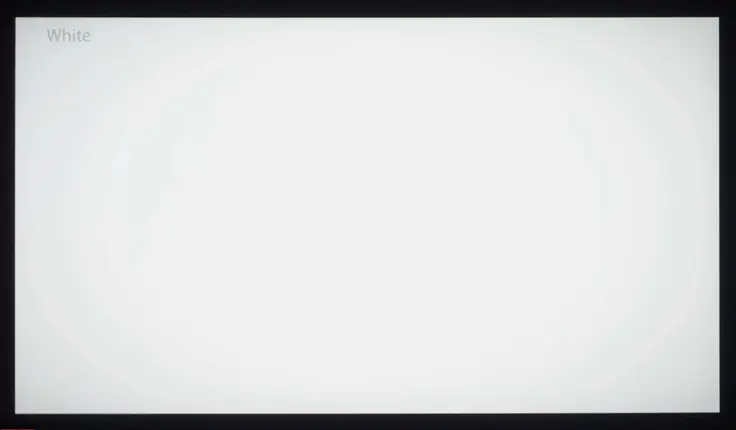
The photos above show a white field with minimal corrections in the graphics editor for a more visual representation of what is happening on the screen in terms of the uniformity of the light field. The Corner Dim function, activated by default, really darkens not only the corners, but also the edges of the image – there is some imitation of conventional LCD monitors with edge (Edge-Lit) backlighting. If you are not worried about the lifespan of your new OLED, then we recommend turning off the function – the uniformity of the glow will be much higher.
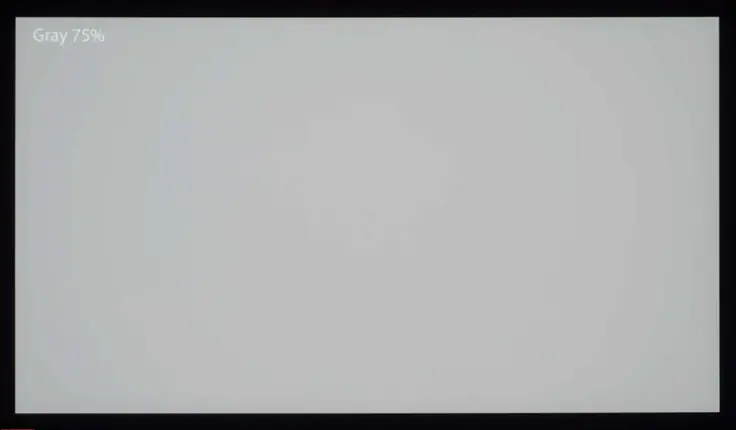
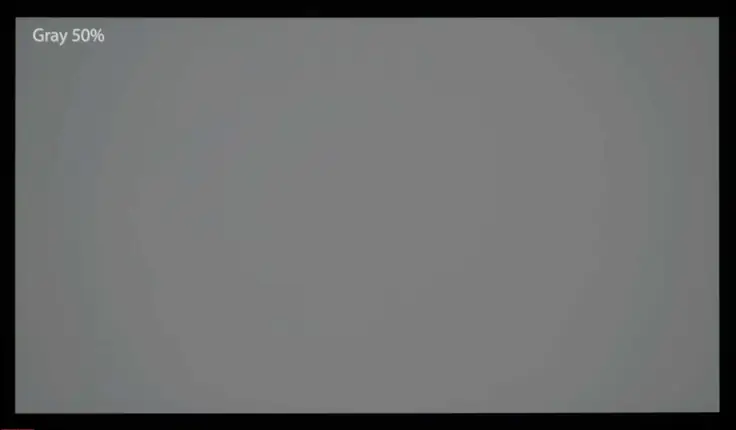
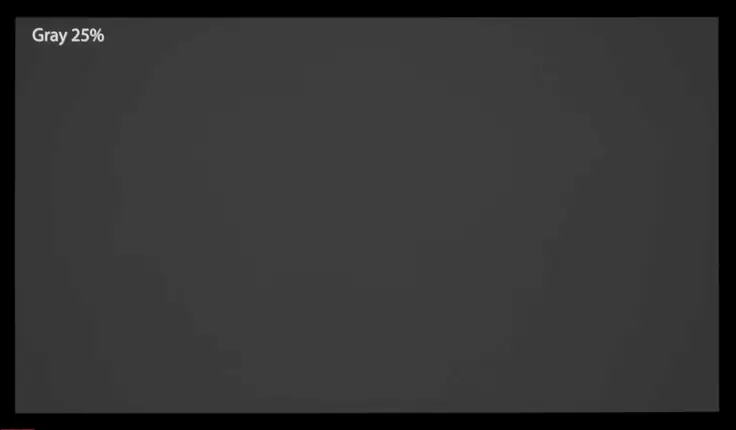
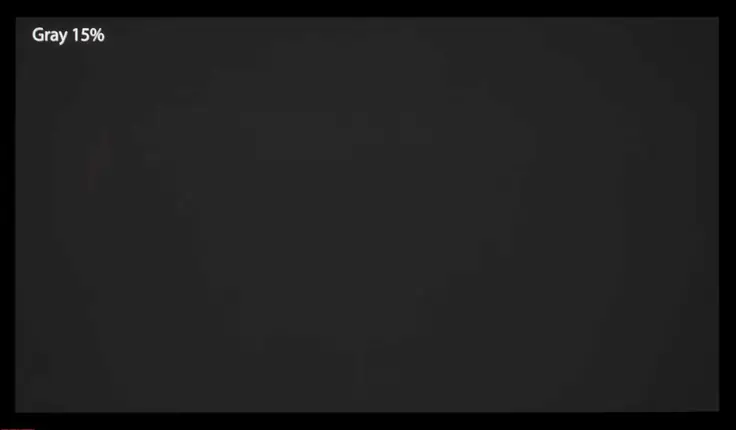
The difference between the screen areas in terms of brightness and CT is practically invisible even when displaying dark gray canvases. On the darkest of them (15% gray and below), only a slight dynamic noise begins to be visible, but there is nothing “criminal” – everything is within reasonable limits.
As you know, OLED has no problems with black uniformity. When displaying a black fill on the screen, all pixels turn off, and we are left witnessing the presence of the Black inscription, a working power indicator, and keyboard key backlighting: no Glow effect and problems with “backlighting” like LCD.
Now, let’s examine the consistency of color temperature across the whole screen.
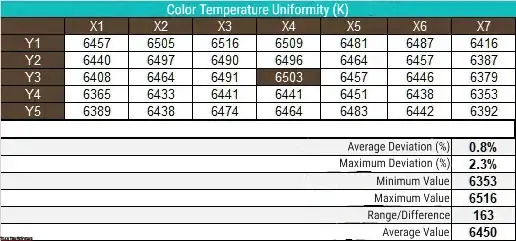
During Gigabyte MO27Q2 review testing, manual settings of the central temperature were used to obtain 6500K The brightness of the white field in the central point remained at the level of 100-102 nits. Here, the Gigabyte screen showed another high result: the average deviation was at the level of 0.8%, and the maximum was 2.3%, with the difference between the measured minimum and maximum of only 163K.
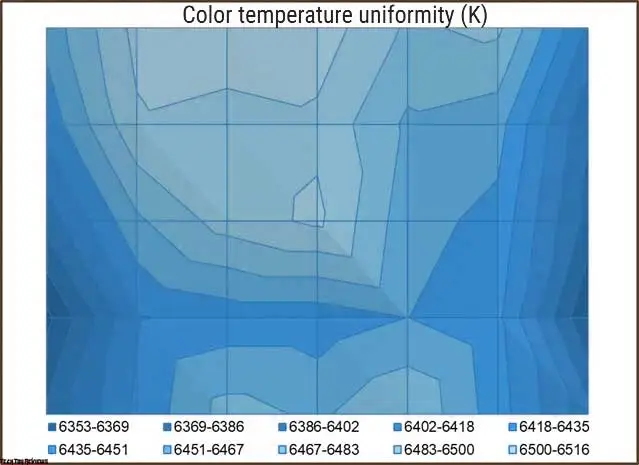
The MO27Q2 demonstrated the lowest values at the edges of the panel, but otherwise, there can be no complaints – only devices, not the eyes, can detect such a difference well.
Final Line
The Gigabyte MO27Q2 27-inch 240Hz gaming monitor sets another bar for direct competitors. Due to the use of stable quality QD-OLED panels, manufacturers only need to integrate them into their cases correctly, tie in modern algorithms for working with organic LEDs, expand software and hardware capabilities, and not forget about high-quality cooling of the filling. With all this, our Gigabyte MO27Q2 review model is in perfect order, and its retail price is a pleasant surprise – especially when compared to what the market offered some six months ago among gaming OLEDs of this kind.
Thanks to the advanced algorithms of the OLED Care complex, you can count on the MO27Q2 to live a long time without problems. Due to the ability to manually influence the built-in Corner Dim function, you do not have to worry about the uniformity of the glow. Both in terms of brightness and color temperature, the new Gigabyte is capable of demonstrating extremely high indicators.
In other words, there is simply nothing to complain about. Does this happen? It turns out that it does. And therefore, if you are not afraid of the well-known features of QD-OLED and are looking for a modern gaming monitor, then you now know one good OLED model for sure. At least, it works off every penny invested.
In other words, there is simply nothing to complain about. Does this happen? Surprisingly, it does—especially in this case. If you are not afraid of the well-known features of QD-OLED and are looking for a modern gaming monitor, you now have a reliable OLED model to consider. At a price of $599.99 on Amazon.com and £439.99 on Amazon.co.uk, it genuinely delivers excellent value for every penny invested.